
From the journal
How to Choose a Theme in WordPress

By Naomi Wells
A WordPress theme controls the site’s presentation, templates and many editing options. A suitable choice should support the content, make important tasks
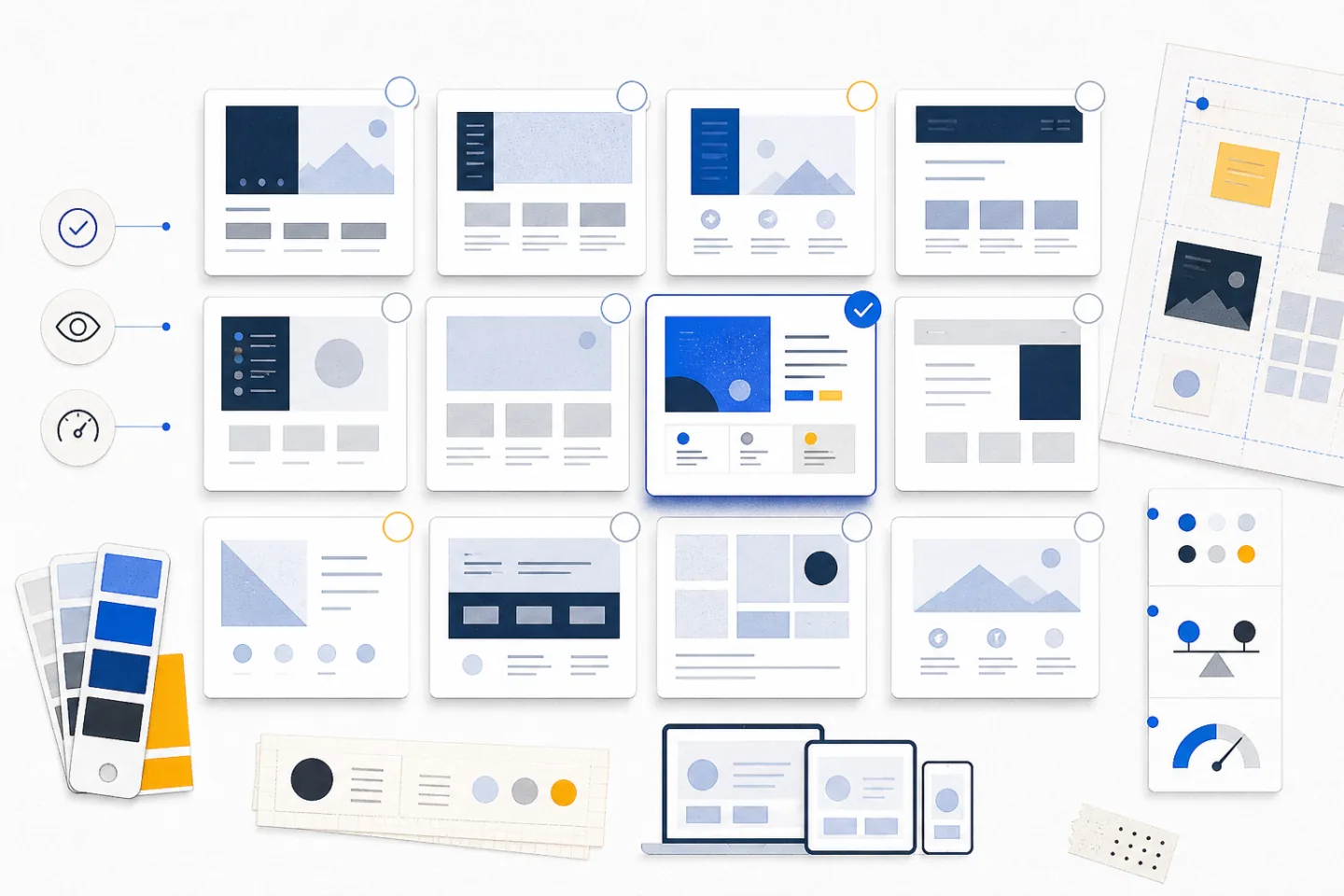
A WordPress theme controls the site’s presentation, templates and many editing options. A suitable choice should support the content, make important tasks easy for visitors and remain manageable for the people who update the site. Start with requirements rather than a polished demonstration. A theme that looks impressive with prepared sample content may be awkward when it has to display real articles, products, forms or images.
The aim is not to find a theme with every possible feature. It is to find one that covers the essentials with as little unnecessary complexity as possible. The official WordPress theme directory is a sensible place to understand the selection and installation process before comparing candidates.
Define What the Site Must Do
Write down the site’s purpose, audience and main visitor action. A publication needs readable articles and useful archives. A service site may need clear service pages and an accessible enquiry form. A shop needs dependable product, basket and account layouts. A portfolio depends on flexible project pages and careful image handling. These needs should determine the shortlist.
Separate requirements into three groups:
- Essential: functions and layouts the site cannot operate without.
- Useful: options that improve editing or presentation but are not required at launch.
- Decorative: effects that can be removed without changing the site’s purpose.
Be specific. Instead of asking for a “flexible layout”, list the page types, navigation depth, sidebar needs, image ratios and content widths required. Note any forms, memberships, multilingual content, search filters or custom content types. This makes it easier to reject themes whose demonstrations hide a poor structural fit behind animation and stock imagery.
Choose the Right Editing Model
WordPress themes can use different editing approaches. Block themes expose templates, headers, footers, navigation and global styles through the Site Editor. They suit editors who want to adjust the whole site visually and reuse block patterns. Classic themes commonly use menus, widget areas, a customisation panel and fixed template files. They may suit an established site whose plugins and working practices already depend on that structure.
The distinction matters because it changes routine work. Before choosing, ask the people who will maintain the site to edit a page, change a global colour, update the navigation and adjust a template in a trial installation. WordPress’s explanation of themes, templates, and pages helps separate the role of the theme from the content stored in pages.
Free and paid themes can both be suitable. Judge each candidate by its fit, maintenance record, documentation and dependencies. For a paid option, read the licence and renewal conditions without assuming that payment guarantees quality. For a free option, do not assume that fewer settings mean a weaker design. A focused theme can be easier to understand and maintain than one with a large collection of bundled features.
Check Layout and Content Fit
Review more than the homepage. Open a standard page, a long article, an archive, search results, the error page and any specialist templates the site needs. Check whether headings wrap naturally, lists are easy to scan, quotations are distinct and images can use the required proportions without awkward cropping.
Test the theme with representative content rather than the demonstration text. Include a long title, a short page, a deep navigation menu, several image sizes and a form with realistic labels. If the existing site is being redesigned, import a small but varied sample. This exposes rigid templates and missing controls before they become migration problems.
Useful design controls include:
- consistent type, colour and spacing settings;
- appropriate content widths for reading and landing pages;
- predictable header, footer and navigation options;
- clear styles for links, buttons, fields and validation messages;
- mobile adjustments that do not hide essential content.
Avoid relying on extensive custom code to make the basic templates usable. Small adjustments are normal, but a candidate that needs repeated overrides for ordinary pages is probably a poor fit.
Test Performance and Mobile Behaviour
A screenshot cannot show how quickly a page becomes usable. Test a live demonstration, then test the theme in a private copy of the site with the expected plugins, fonts, images and content. Examine a typical article and the most complex page, not only a deliberately sparse homepage.
Look for large background media, sliders, animation libraries, several font families and scripts that load on pages where they are not needed. Confirm that optional features can be disabled. Compare candidates under the same conditions so that differences come from the theme rather than from different hosting, content or cache settings.
Check narrow layouts on physical devices as well as browser emulation. Navigation should open and close reliably; text should remain readable without zooming; columns should stack in a logical order; and buttons and fields should be easy to use by touch. Test long menu labels, error messages, image captions and the on-screen keyboard. Horizontal scrolling, clipped controls or hidden content are reasons to reject a theme unless the fix is simple and durable.
Check Accessibility from the Start
An accessibility-ready WordPress theme is a useful starting point, not proof that the finished site will be accessible. Content, colour choices, plugins and later customisation can introduce new barriers.
Use the keyboard to move through every interactive element. The focus indicator should remain visible, the order should follow the page, and menus should work without a mouse. Check that headings form a logical outline, form fields have clear labels, error messages explain what to correct and links make sense in context. Text and controls need sufficient contrast in their normal, hover and focus states.
Automated checks can identify common markup and contrast problems, but manual testing is still necessary. A menu may technically receive focus yet be confusing to operate. A form may pass a scan while giving no useful explanation when submission fails. Test the templates and workflows that visitors will actually use.
Verify Compatibility and Maintenance
List the plugins that provide essential functions and test them with each shortlisted theme. Create and edit content, submit forms, run searches and inspect any account, checkout or gated areas that apply. Check plugin-generated messages as well as their main screens. A theme may style the normal state correctly while leaving errors, empty results or confirmation notices unreadable.
Review the theme’s change history and documentation. Look for clear setup instructions, supported WordPress versions and meaningful notes about fixes. Avoid assuming that a recent date alone proves good maintenance. Documentation should explain how to configure the areas you need without forcing editors to reverse-engineer the demonstration site.
Keep site functions separate from presentation where practical. If changing the theme would remove essential content or business logic, the site has become unnecessarily dependent on it. This is particularly important for custom content types, forms, search features and structured data. A theme should present those functions, not own information that must survive the next redesign.
Preview with Real Content
A private staging site gives a more reliable test than a public demonstration because it combines the candidate theme with your content, settings and plugins. Back up the live site, create the staging copy and make changes there. Previewing content as described in official documentation can help catch page-level problems before publication.
Use the same short test for every candidate:
- Activate the theme and configure only the settings the live site would need.
- Review the homepage, main page types, archives, search and error page.
- Test navigation, forms and other essential workflows with a keyboard and a phone.
- Measure representative pages and note assets or features that cause avoidable delay.
- Record required code changes, plugin conflicts and editorial work.
Do not switch the live site merely because the staging homepage looks right. Check existing links, widgets, menus, image crops and reusable blocks. Plan how to restore the previous theme and settings if an unexpected problem appears after activation.
Make the Final Choice
Reduce the shortlist to candidates that meet every essential requirement. Compare the remaining options by total maintenance effort: configuration, custom code, dependencies, editor training and future updates. Decorative features should not outweigh a clear editing experience, stable layouts or dependable mobile behaviour.
Choose the simplest candidate that supports the site’s real content and workflows. Before activation, save the test notes, confirm the backup and rollback steps, and schedule a final check of the live pages. That decision process produces a theme chosen for evidence and fit rather than for a demonstration designed around someone else’s content.