
From the journal
How to Create a Custom Theme in WordPress

By Naomi Wells
A custom WordPress theme controls how stored content becomes a usable website. Building one well requires more than choosing colours and typefaces: you nee
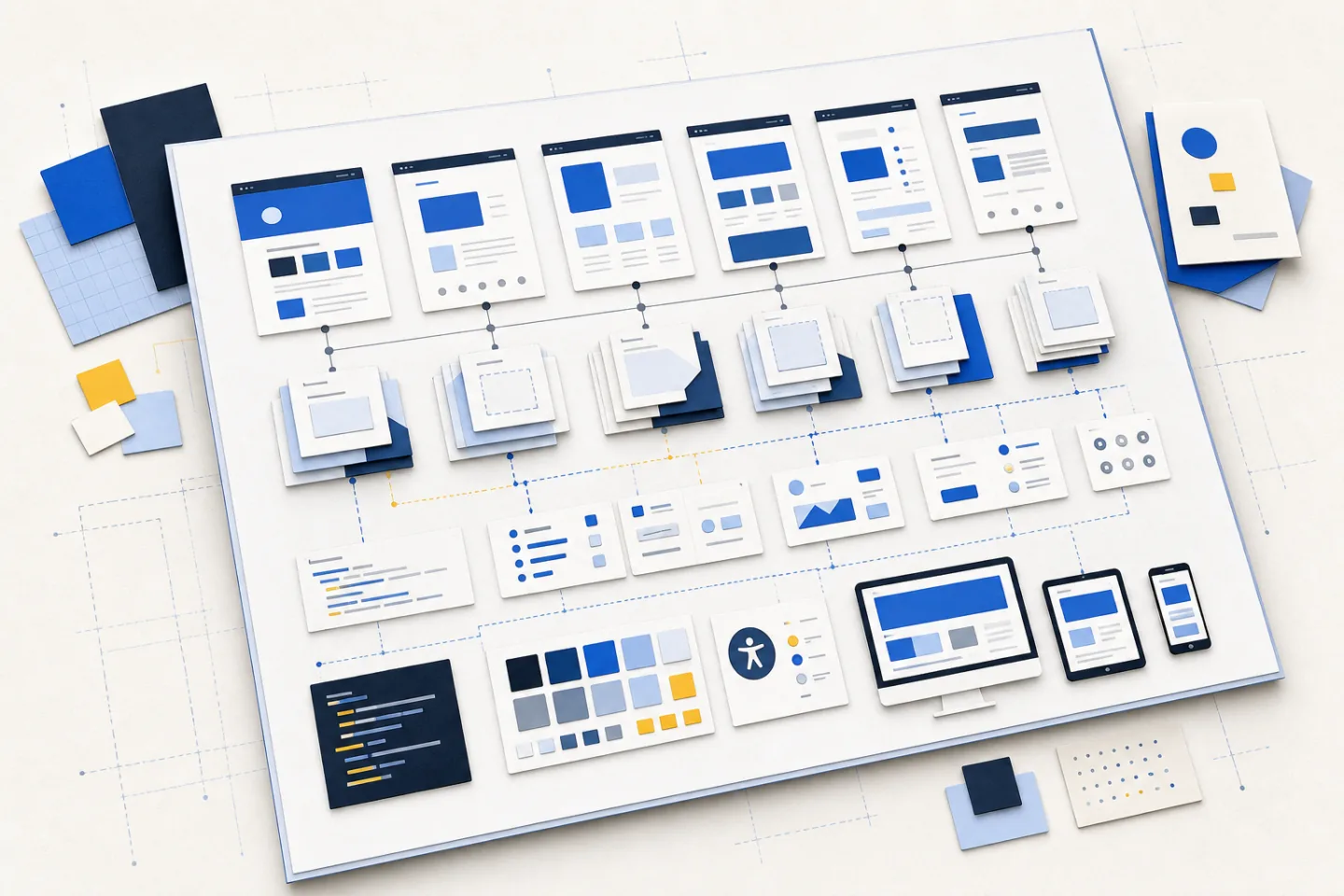
A custom WordPress theme controls how stored content becomes a usable website. Building one well requires more than choosing colours and typefaces: you need a clear template plan, a restrained design system, safe theme code and a repeatable testing process.
Start in a local development environment with representative content. Keep presentation in the theme, while features that must survive a theme change belong outside it.
Define the Theme Before Writing Code
Choose a Theme Architecture
Decide whether the project needs a classic theme, a block theme or a deliberate combination supported by the platform. A classic theme uses PHP templates and template tags. A block theme uses HTML templates, template parts and a central configuration file to expose design controls in the editor. The WordPress Theme Handbook explains both approaches.
Choose according to how editors should work. A block theme suits rearrangeable page regions; a classic theme suits tightly controlled layouts or established PHP templates. If you mix approaches, document which system owns each page region.
Inventory Content and Page Types
List every view the theme must render before designing individual screens. Include the front page, standard pages, single posts, archives, search results and the not-found page. Add any project-specific content types, but do not create them merely to solve a styling problem.
For each view, record the required content, optional content and empty state. A post may need a title, date, categories, main content and related navigation. An archive needs a clear heading, useful summaries and pagination. This inventory exposes layouts that fail with missing or unusually long content.
Plan the Design System
Set Practical Design Rules
Define colours by purpose: page background, surface, text, muted text, border, link, focus, success and error. Test every text and control combination for sufficient contrast. Do not rely on colour alone to show validation, selection or state.
Choose a small type scale with clear roles for body text, headings, labels and captions. Set a comfortable line height and a readable maximum width for long passages. Then define a spacing scale and use it for component gaps, page margins and section rhythm. Consistent rules reduce one-off values and make later changes predictable.
Design interaction states with the default appearance. Links, buttons, menu controls and form fields need visible hover, focus, active, disabled and error states where relevant.
Limit Editorial Choices
Editors need enough flexibility to publish varied content, but unrestricted controls often produce inconsistent pages. Offer approved colours, font sizes, widths and spacing options. Create patterns for repeated compositions such as a feature introduction, a card group or a callout, and give each pattern a clear purpose.
Document what editors may change and what remains structural. They might replace a card’s text and media but should not alter its heading order or invent padding values. These limits protect accessibility and consistency.
Create a Clear File Structure
Build the Minimum Foundation
Create a dedicated theme directory and place it under version control. A classic theme needs a valid style.css header and an index.php fallback. Most projects also use functions.php for setup, feature support, menu registration and asset loading. Add more files only when they have a defined responsibility.
A block theme normally places templates in a templates directory and shared sections in parts. Its theme.json file defines editor settings and global styles. Keep filenames descriptive and organise optional helpers by concern rather than collecting unrelated functions in one large file.
Separate source styles and scripts from generated files. Commit dependency manifests and lock files, but exclude caches, local configuration, logs, credentials and installed dependencies. Another developer should be able to reproduce the build.
Map Templates Deliberately
WordPress follows a template hierarchy when choosing which file renders a request. Use the most specific template only when that view genuinely differs; otherwise let it fall back to a shared template. Too many nearly identical files make fixes slow and inconsistent.
Keep global document structure in shared header and footer parts. Extract smaller parts for repeated content such as post cards, entry metadata and pagination. Template parts are reusable sections of a site design, so each should have a narrow job and accept the context it needs without hiding page-specific assumptions.
Do not hard-code titles, identifiers, addresses or environment paths into general templates. Read content and settings through the platform’s APIs. Give a page with a distinct composition an explicit template instead of fragile conditional branches.
Register Features and Load Assets Safely
Register theme support, navigation locations and image sizes during theme setup. Load public styles and scripts through the platform’s enqueue system instead of printing tags directly in templates. This allows dependencies and versions to be managed in one place and prevents assets from loading in an unpredictable order.
Load scripts only where needed, and keep editor-only controls in the editor bundle. Prefer ordinary HTML behaviour before adding JavaScript. Enhanced controls still need a clear name, state and keyboard operation.
Treat all stored or submitted data according to its context. Validate incoming values, sanitise saved settings and escape output when it is rendered. Protect state-changing actions with permission checks and request verification. Use built-in APIs instead of direct database queries when they provide the required operation.
Keep lasting functionality separate from the theme. A custom content type, business rule or data integration should not disappear when the visual presentation changes. Theme code should concentrate on layout, display and editor presentation.
Make Templates Accessible and Resilient
Start with Semantic Structure
Use one page heading that identifies the main content, then nest later headings in a logical order. Mark up navigation, main content, complementary information and the footer according to their roles. Use real buttons for actions and links for navigation; styling a generic element to look interactive does not provide equivalent behaviour.
Add a visible-on-focus skip link before repeated navigation. Every form field needs a persistent label, useful instructions and a clear error message. Keyboard users must be able to reach every control in a sensible order, see where focus is and leave any opened menu or dialogue.
Give informative images meaningful alternative text and decorative images empty alternative text. Do not repeat nearby captions. Reserve image dimensions or an aspect ratio to prevent movement while media loads.
Design for Variable Content and Screens
Build from narrow screens outward, but choose breakpoints when the layout needs them rather than for named devices. Test long titles, short extracts, missing images, nested lists, wide media, large text and empty search results. Content stress tests reveal problems that a polished sample page conceals.
At each width, check that navigation remains operable, text stays readable, controls have enough separation and no content forces horizontal scrolling. Compare the editor view with the published page so authors are not surprised by different widths, colours or spacing.
Test, Release and Maintain the Theme
Test with Representative Content
Run the theme locally with debugging enabled and fill the site with varied test content. Check the home page, every template type, pagination, menus, forms and the not-found view. Test as both an editor and a signed-out visitor, because permissions and editing controls can hide faults.
Use keyboard-only navigation and a screen reader check. Zoom the page, enlarge text and inspect supported colour preferences. Test in multiple current browser engines and on a touch device. Automated checks can find invalid markup, contrast failures and missing labels, but do not replace manual interaction.
Review error logs after each important flow. Confirm that templates escape dynamic output, saved settings reject invalid values, missing optional data has a safe fallback and scripts fail without blocking the main content. Remove debug output before release.
Deploy with a Rollback Path
Build production assets from a clean checkout and deploy version-controlled files to a staging environment first. Verify navigation, permalinks, media paths, forms and caches there. Back up the existing theme and relevant site data, then practise restoring the previous version before changing production.
After deployment, clear only the caches affected by the release and inspect the critical templates as a visitor. Watch server and browser errors for failures that did not appear in staging. Record the released revision so a later fault can be traced to an exact set of files.
Maintain the theme through small, reviewed changes. Re-test the touched templates and shared components after every update, and repeat the broader accessibility and content checks before major releases. A custom theme stays dependable when its structure, design rules and release process remain understandable to the next person who works on it.