
From the journal
How to Modify WordPress Themes

By Naomi Wells
Modifying a WordPress theme can mean anything from changing a heading color to rebuilding the way an article is arranged. The safest approach starts by def
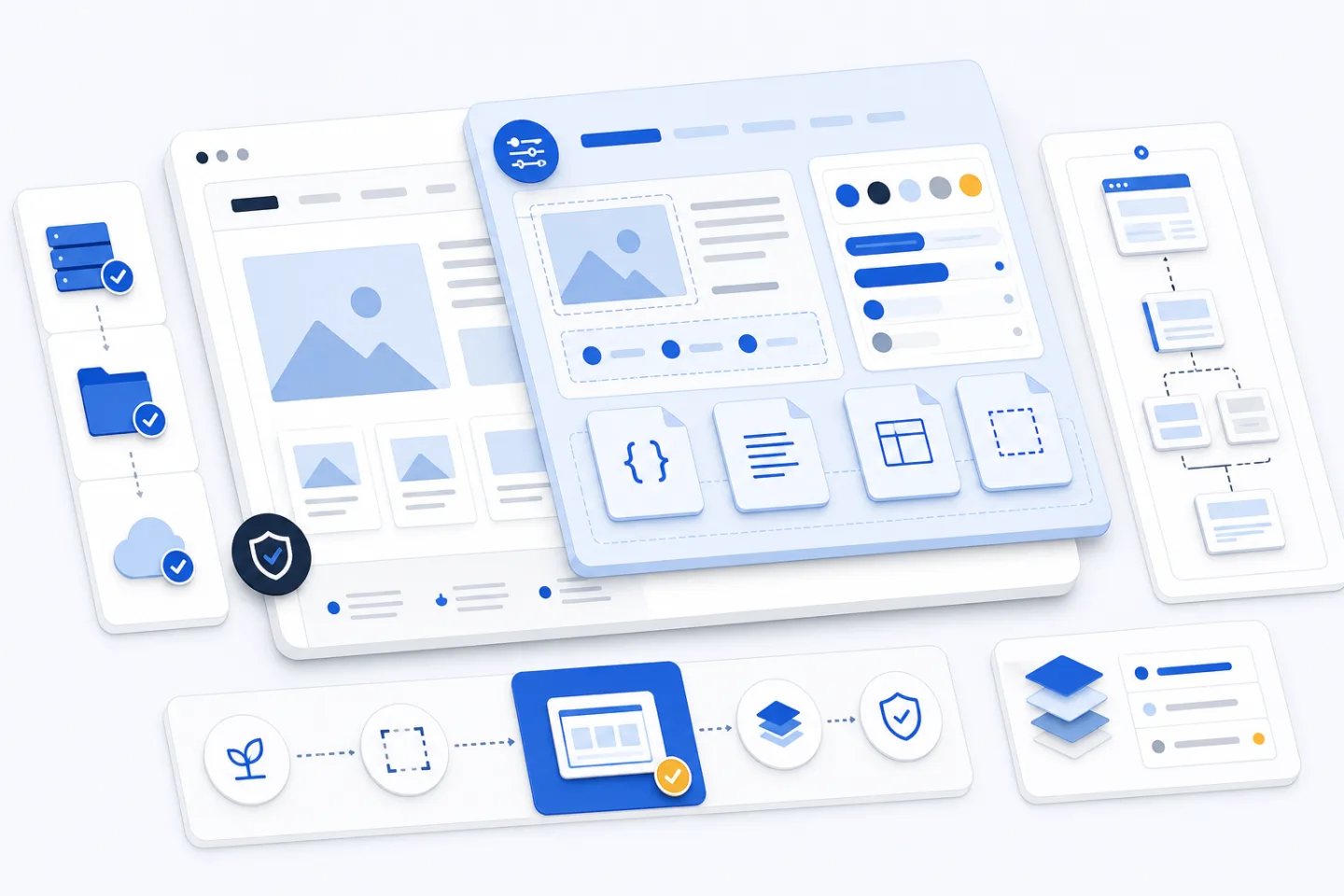
Modifying a WordPress theme can mean anything from changing a heading color to rebuilding the way an article is arranged. The safest approach starts by defining the result you want, then choosing the least invasive method that can produce it. A small visual adjustment belongs in theme settings or custom CSS. A structural change may require a child theme, a copied template, or a carefully placed function.
This guide treats theme customization as a controlled design task. You will map the existing theme, isolate your work, make one change at a time, and test the result before it reaches visitors. That process keeps the site easier to update and gives you a clear route back when an experiment does not work.
Start With the Smallest Effective Change
Write down what should look or behave differently before opening any file. Be specific: “reduce the space above article headings” is a useful target, while “improve the layout” is not. Check the page at several screen widths and identify whether the issue comes from content, theme settings, CSS, a template, or added functionality.
Use the simplest suitable customization layer:
- Theme settings are appropriate for options the theme already exposes, such as a logo, color, menu position, or layout choice.
- Custom CSS works for visual adjustments that do not change the document structure.
- A child theme keeps template and code changes separate from the parent theme.
- A focused plugin is often better for site behavior that should remain available if the visual theme changes.
Avoid editing the parent theme or the WordPress core. Updates can replace those edits, and mixing custom work into maintained files makes troubleshooting harder.
Understand the Theme Before Editing It
A theme combines styles, templates, assets, and functions. The main stylesheet establishes visual rules. Template files determine which content appears and how it is arranged. A functions file registers theme features and can attach custom behavior. Images, fonts, and scripts usually sit in their own folders.
WordPress chooses templates through a hierarchy. It looks for the most specific file that matches the requested page, then falls back to a more general file. A single article may use a specialized article template, a general single-content template, or the theme’s final fallback. Find the template that actually renders the page before copying or changing anything.
Browser developer tools help connect what you see to the responsible markup and CSS. Inspect the element, note its classes and surrounding structure, and locate the matching rule in the theme. This quick mapping prevents broad overrides that accidentally affect unrelated pages.
Prepare a Safe Workbench
Do not test theme edits on the live site. Use a local copy or a staging environment with the same theme, active extensions, content types, and relevant settings. Differences between environments can hide a problem until deployment, so keep the test setup close to the live configuration.
Create a complete backup of the site files and database before changing code. A backup is useful only if it can be restored, so verify the recovery process in the test environment. Keep an untouched copy of every parent template you plan to override.
Use version control when possible. Make a small commit for each logical change and describe the intent, not only the filename. This creates a readable history and makes it easier to compare working and broken states. If version control is unavailable, keep clearly labeled copies outside the active theme folder.
Build Customizations in a Child Theme
A child theme inherits the parent theme’s presentation while providing a separate home for your overrides. At minimum, it needs its own folder and stylesheet with metadata that identifies the parent. A functions file can load styles and attach custom behavior, but it does not simply replace the parent functions file; both participate in the request.
Copy a parent template into the child theme only when you need to change that template. Preserve the relative folder path and remove unnecessary differences. A short, deliberate override is easier to compare with future parent updates than a copied file containing unrelated edits.
Use hooks and filters when the theme exposes an appropriate extension point. They can add, remove, or adjust output without duplicating a complete template. Use a template override when the structure itself must change. This distinction keeps the customization surface small and reduces maintenance work.
Adjust Appearance With Controlled CSS
Begin with the theme’s built-in design controls if they cover the requirement. Preview the change, then check headings, links, buttons, forms, lists, tables, and long text rather than judging a single page. A color or spacing choice that works in the header may fail inside an article or narrow mobile layout.
For custom CSS, target a stable class on the smallest meaningful component. Avoid selectors tied to a long chain of nested elements, because a minor template change can break them. Do not use a global override when the design request concerns one component. Group related rules and add a brief comment explaining why the override exists.
Test text at different lengths and zoom levels. Check keyboard focus, contrast, line length, and tap targets along with visual polish. A customization is not complete if it looks tidy but makes navigation or reading harder.
Modify Templates and Theme Behavior Carefully
Before editing a template, identify its inputs and output. Note which content fields it displays, which surrounding layout it expects, and which hooks it calls. Preserve semantic heading order and meaningful landmarks when rearranging elements. Keep presentation in stylesheets instead of scattering inline styles through templates.
Place reusable behavior in a named function with one clear responsibility. Validate data before using it, escape values when they are printed, and treat all user-supplied input as untrusted. Do not place credentials or private configuration in theme files. If a feature manages data, form submissions, or site-wide business logic, separate it from the theme so that changing the design does not remove the feature.
Menus, widget areas, and form components need both registration and presentation. Confirm that the theme supports the intended placement, then style the component’s normal, empty, error, success, and keyboard-focus states. The feature should remain understandable even when optional content is missing.
Test the Complete Change Surface
Test the page you changed and every page type that shares the same template or component. Include the home page, articles, archives, search or empty states if present, and any custom content types. Check narrow and wide screens, keyboard navigation, common browsers, and both authenticated and public views when they differ.
Use a repeatable review sequence:
- Confirm that the intended change appears in the correct location.
- Check nearby content for spacing, overflow, and heading-order problems.
- Review the browser console and server error log.
- Submit and validate any affected forms without using real personal data.
- Clear relevant caches and repeat the public-page check.
- Compare performance before and after the modification.
Do not assume that a page is healthy because it loads. Missing scripts, hidden warnings, inaccessible controls, and layout shifts can remain unnoticed during a quick visual check.
Troubleshoot One Variable at a Time
If the site becomes unavailable after a code edit, restore the last working file or deactivate the child theme from the file system. Read the error log for the first relevant failure instead of changing several files at once. Syntax errors, incorrect file paths, and functions declared more than once are common causes of an immediate failure.
When a style does not appear, inspect the element and check whether the stylesheet loaded, the selector matches, and another rule has higher priority. When the layout works only while signed in, clear caches and compare the generated markup in both states. When behavior conflicts with an extension, disable optional extensions one at a time in staging to isolate the interaction.
After finding the cause, remove temporary debugging output and retest the original requirement. A fix that hides the symptom without explaining it is likely to return.
Keep the Theme Maintainable
Record each customization with its purpose, location, test steps, and any dependency on the parent theme. Before applying a parent update, review its changed templates against your child copies. Test the update in staging, resolve differences deliberately, and confirm that the live deployment includes only reviewed files.
Remove obsolete overrides instead of allowing them to accumulate. Revisit custom CSS when markup changes, and delete copied templates that no longer differ meaningfully from the parent. Keep unused themes and unnecessary extensions out of the active installation, and continue applying maintained updates through the same test process.
The safest theme modification is not the cleverest one. It is the smallest change that meets the design need, survives an update, and can be tested and reversed.
With a clear target, an isolated workspace, and a disciplined review sequence, theme customization becomes predictable. Start with settings or CSS, move to a child theme only when structure demands it, keep lasting functionality separate from presentation, and leave enough documentation for the next person to understand every choice.
Continue this design topic with SEO crawler.