
From the journal
How to Install and Configure a Website Theme

By Naomi Wells
A website theme controls how your content is presented. A theme controls much of what visitors see: the typography, colours, spacing, navigation, headers,
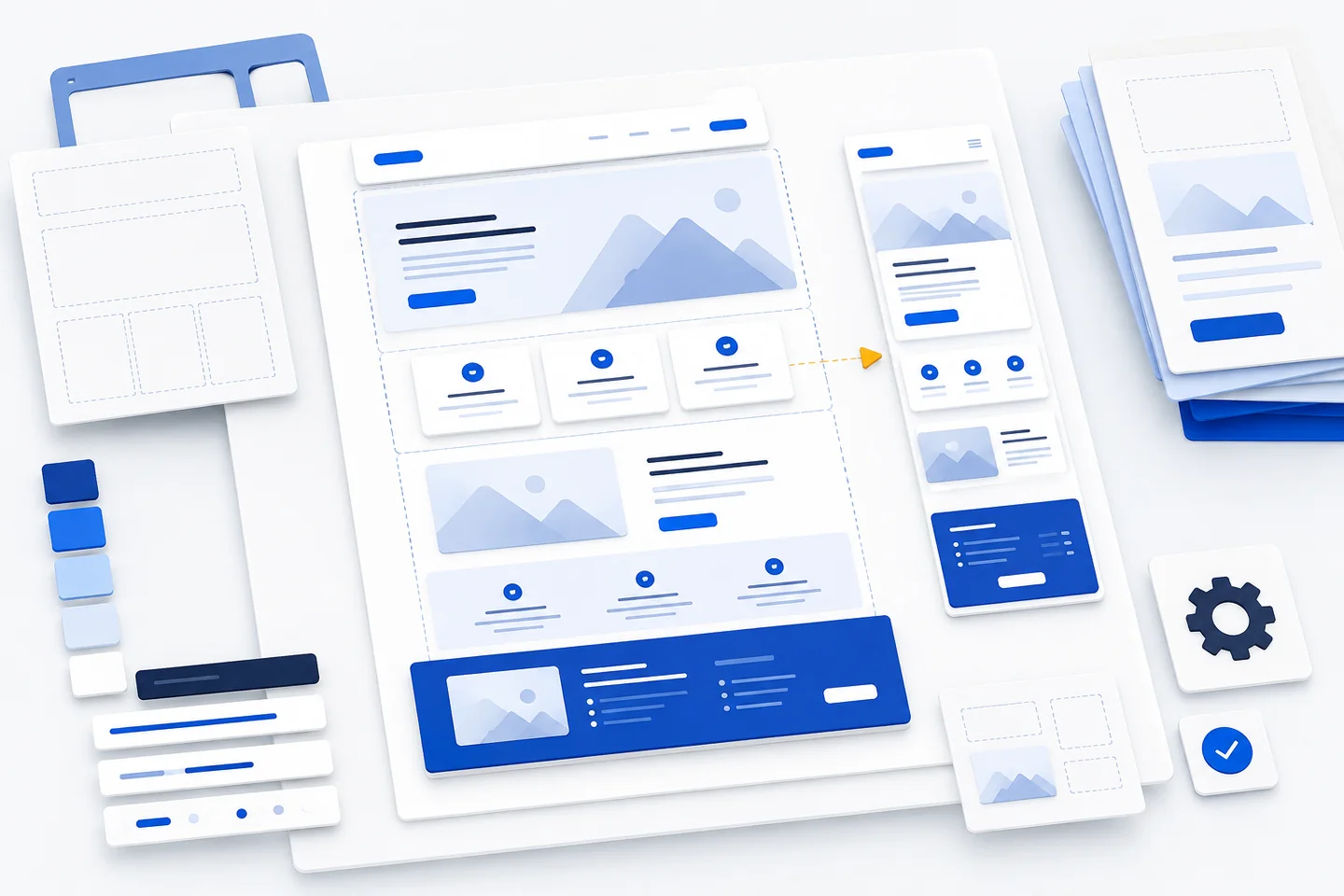
A website theme controls how your content is presented. A theme controls much of what visitors see: the typography, colours, spacing, navigation, headers, footers, page layouts, post templates and archive designs. It may also determine how editors build and adjust pages.
Understand What a Theme Does
A theme provides the presentation layer for a site. It does not normally replace the pages, posts, images, users or other content stored in the content management system. However, changing the theme can change how that content is arranged and displayed.
Keep the roles of themes and plugins clear where possible. A theme should primarily present the site. Functions that must remain available when the design changes, such as forms, custom content types or specialised business logic, are usually easier to maintain when they are not dependent on one particular theme.
Choose a Theme for Your Actual Content
Start with the site’s purpose and content rather than a theme demonstration. A polished demo may use carefully selected images, short headings and prepared layouts that do not resemble your real pages. Review how the theme handles the content visitors will actually read and use.
Consider these questions before installing anything:
- What content must it display? Check pages, posts, categories, archives, images, galleries, tables and any custom content types.
- How will people edit it? Confirm whether the theme uses the Site Editor, the Customizer, widgets, theme settings or another documented workflow.
- Does the layout suit the subject? A portfolio, publication, service site and online shop may need very different arrangements.
- Will the theme remain readable? Check long titles, long paragraphs, lists, quotations, captions and error messages.
- What does it depend on? Review required plugins, fonts, page builders and other extensions before committing to the design.
- How will it be maintained? Look for usable documentation, an understandable update process and a clear way to diagnose problems.
Know Whether You Are Using a Block or Classic Theme
Theme editing commonly follows two approaches. A block theme uses blocks for areas such as the header, footer, navigation and content templates. With a block theme, you can use the Site Editor to adjust templates and template parts as well as individual pages.
According to the WordPress documentation on block themes, the Site Editor and global Styles tools are central to this approach. These themes can be useful when you want to make coordinated changes to typography, colours, spacing and layouts across the site.
Classic themes generally use PHP templates, widget areas, menu settings and the Customizer. A classic theme may be a practical choice when an existing site already depends on that structure or when the people maintaining it are familiar with those controls.
Prepare the Site Before Switching Themes
Create a restorable backup before installing or activating a new theme. Include the database and site files, and make sure you know how the restoration process works. A backup that cannot be located or restored is not a reliable safety net.
Use a staging copy or local test site when the website is important to its organisation, customers or readers. Test the candidate theme with representative content and the plugins that provide essential functions. If a staging environment is not available, keep the current theme installed and prepare a focused review checklist before activating the replacement.
Record the current configuration, including:
- the active theme and any child theme;
- the home page and posts page assignments;
- primary, secondary and footer menu locations;
- widget areas, reusable blocks and template parts;
- the logo, site icon, colours and important typography settings;
- custom CSS and theme-specific options.
Theme settings do not always transfer between themes. Keep a private note of important values so they can be recreated without placing passwords, access keys or other secrets in the document.
Install a Theme from the Dashboard
For systems with a built-in theme directory, the dashboard provides an installation route. The official theme documentation describes the normal activation flow and explains that only one installed theme can be active at a time.
- Sign in to the administration area with an account permitted to manage themes.
- Open Appearance > Themes.
- Select Add New.
- Search by name or use the available filters.
- Open the theme details and preview it with your content where possible.
- Select Install.
- After installation completes, select Activate when you are ready.
Installation adds the theme to the site; it does not necessarily make it active. The WordPress Themes screen documentation also recommends using the preview and checking the theme before activation. If the preview is blank or visibly broken, investigate the cause instead of activating the theme to see what happens.
Upload a Theme Package
If you received a theme as a ZIP file, open Appearance > Themes > Add New and choose Upload Theme. Select the installable ZIP file and begin the installation.
Some downloads contain documentation, licence information, sample content and a second ZIP file. If the installer rejects the first archive, check its structure and the theme’s instructions. Do not install an altered or unfamiliar package simply to bypass an error. Obtain the correct files from a source you trust and verify that the package is intended for your content management system.
Preview, Activate and Inspect the Site
Review more than the homepage. Open a standard page, a long article, an archive, the navigation, the footer and any page with a form or special layout. Check for missing menus, empty sidebars, poorly cropped images, low-contrast text, clipped controls and unexpected changes to the reading width.
When the preview is satisfactory, activate the theme and inspect the public site in a separate browser window. Test both wide and narrow screens. Open the menu, follow important links, submit test forms without real personal data and check any search, account or commerce functions that apply.
Confirm that the correct homepage remains assigned and that key pages are still easy to find. If the old and new designs appear mixed, clear the relevant site, plugin or hosting cache according to its documentation. Caching can hide a successful change or make an incomplete change appear finished.
Customise the Theme in a Controlled Order
Begin with the largest design decisions: logo, site identity, colours, typography, content width, header, footer and navigation. Only then adjust individual blocks or components. This keeps the site coherent and avoids repeatedly correcting small details after a global setting changes.
For a block theme, open Appearance > Editor and review the Styles, Templates and Patterns areas. The WordPress Site Editor documentation explains that the Site Editor is available when a block theme is active. Use global styles for changes that should apply consistently, and edit an individual block only when the change is intentionally local.
For a classic theme, use the documented Customizer, menu screen, widget areas and theme options. Avoid changing theme files directly when a supported setting or custom CSS field provides the required result.
If code changes are necessary, use a child theme or another documented extension method. The WordPress Theme Handbook’s child-theme guidance explains how a child theme can keep custom changes separate from the parent. Editing the parent theme directly can cause your work to disappear during a later update.
Test Accessibility and Real Visitor Tasks
Visual polish is only one part of a successful theme change. Use the keyboard to move through the navigation, links, buttons and forms. Make sure focus remains visible and the order makes sense. Check heading structure, link wording, form labels, error messages and contrast in normal, hover and focus states.
Test with realistic content rather than only the theme’s sample material. Include long headings, missing images, short pages, multi-level navigation, lists, tables and empty states. Check that text remains readable when it wraps and that visitors do not need sideways scrolling on a narrow screen.
Automated checks can reveal common markup and contrast problems, but they do not replace manual review. A menu may technically receive keyboard focus while remaining difficult to operate. A form may render correctly while giving no useful explanation when submission fails.
Maintain and Review the Theme
Keep the active theme, underlying software and essential plugins maintained through a process that includes backups and testing. Read update notes, apply meaningful updates in staging when possible and review the public site afterward.
Keep a record of custom CSS, child-theme templates and theme-specific settings. Remove obsolete overrides rather than allowing them to accumulate. If the site no longer needs a theme, remove unused packages according to the maintenance plan while retaining an intentional fallback when appropriate.