
From the journal
WordPress Template Parts vs Patterns: Which One Belongs in the Header?
Suppose a block theme has a single-post template and an archive template. Both show the same logo and navigation. You could include one Header template…
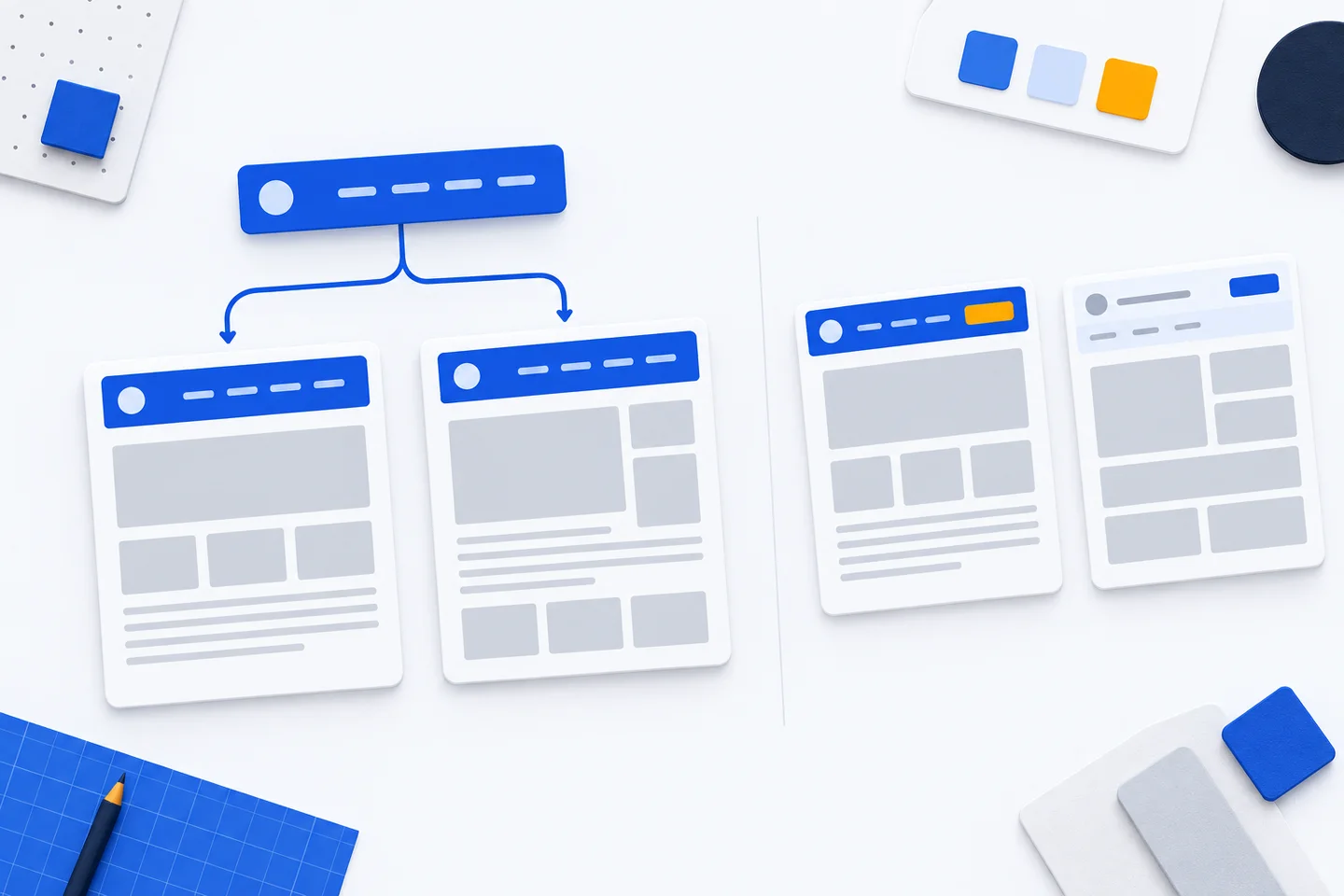
Suppose a block theme has a single-post template and an archive template. Both show the same logo and navigation. You could include one Header template part in each template, or insert the same header pattern twice. They may look identical at first. The difference matters when someone changes the navigation: should that edit reach both templates, or only one?
A shared template part gives both templates one header to reference. Edit the part and every template using it displays the change. A standard pattern supplies blocks that become independently editable after insertion. Editing its copy in the archive leaves the copy in the single-post template alone. Choose according to how the next edit should travel.
How a shared header works
In a block theme, templates define the structure of page types. A Template Part block can sit above the different main-content layouts in the single-post and archive templates, pointing to the same header part. The WordPress Theme Handbook’s template-part example shows a template including a part by slug and a matching file, such as parts/header.html, supplying its block markup. A part does not appear merely because its file exists; each template that needs it must include it.
If both templates refer to the same part, a navigation change needs one edit. The same arrangement can keep a footer consistent across posts, archives and pages. Before treating a missing header as a problem with its design, inspect the affected template: it may not reference the part at all.
A standard pattern serves a different purpose. It provides an initial arrangement that an editor can adapt in each location. That suits headers which share a starting design but need different supporting text or layout. It is less useful for the main site navigation when editors expect one change to reach every page type. Copying the same standard pattern twice does not create a continuing relationship between those copies.
Theme files, metadata and site edits
A block-theme template part is commonly a header, footer or sidebar. Its theme file lives directly in the parts directory and contains block markup. The theme can also describe that file through templateParts metadata in theme.json. This can give the part a readable title and place it in the Header or Footer area of the editor. The Theme Handbook’s guide to global settings and styles distinguishes this metadata from the settings and styles also stored in theme.json. Metadata helps identify a part; the templates still have to include it.
The file provides a starting composition that can travel with the theme. It can be reviewed alongside the templates that reference it. A change to that file is therefore a change to the theme's default header, while an edit saved in the Site Editor changes this site's version. Check which version is supplying the visible header before making a fix.
Template parts and patterns both appear in the Site Editor's Patterns area, but they have separate controls. Template parts have their own section; custom patterns can be Standard or Synced. The WordPress Site Editor documentation describes those controls. Their shared menu location does not mean edits to them behave in the same way.
When an editor changes and saves a template part, WordPress stores the customised part in the site's database. That saved version takes precedence over the corresponding theme file. The templates continue to reference one part, so they display the editor's new version. If an edit to parts/header.html appears to have no effect, look for a saved site customisation before adding another header or changing the templates. The Theme Handbook explains this file-and-database relationship and describes copying editor-created markup into the theme file when the design should be distributed with the theme.
Where synced patterns fit
A standard pattern inserted into two templates produces two arrangements of blocks. Change one arrangement and the other remains as it was. A synced pattern is different: edits to the synced item update its other uses. WordPress's comparison of patterns, template parts and synced patterns separates template parts used for site structure, standard patterns used for independently editable layouts, and synced patterns used for repeated content that should stay aligned.
A synced pattern can repeat content within a page or another composition, but a header's role is structural. A template part expresses that role in the template and is the clearer shared object for a site header. A pattern can still be useful as a starting layout when assembling a part; the finished part is what each relevant template references. If the site genuinely needs two header designs, create two clearly named parts and assign them to the appropriate templates.
Choose by the next change
- One header or footer across templates: use a shared template part. Edit the part when all templates using it should receive the change.
- A layout each template may adapt: use a standard pattern. Each inserted copy can develop independently.
- Repeated page content that should stay aligned: use a synced pattern. Editing the synced item updates its other uses.
- A different header for a particular page type: use another template part and reference it only from the relevant templates.
Start by listing the templates that should share the site's header and footer: single posts, archives, search results and ordinary pages may all need the same chrome. Give those templates the same part references. Record exceptions deliberately. A landing page may need a reduced header, while an archive may need an introduction below the global header. The first can justify another part; the second belongs in the archive template, outside the shared header.
Keep the part's boundary clear. Put site identity and navigation in the shared header. Put page titles, archive filters and page-specific calls to action in their templates or content areas. Otherwise, a small local request can turn into duplicated headers whose ownership is hard to follow. Apply the same test to a footer: shared navigation belongs in the footer part, while a sign-off needed on one page belongs with that page.
For example, an archive may need links to its categories while a single post does not. If those links are part of the archive's content navigation, place them in the archive template below the common header. The logo and site navigation can remain in the shared part. If the entire navigation must differ, give the archive a separate, named header part and reference it explicitly. This makes the exception visible when someone inspects the template. Inserting a second standard pattern may look quicker, but it leaves two independently editable copies to check whenever the site's navigation changes.
When a header change is requested, first identify the visible template and the part it references. Check whether the site has a saved editor customisation. Then decide whether the change belongs in the theme file for distribution, in the saved part for this site, or in one template outside the shared part. This avoids editing a theme file repeatedly when a saved part is taking precedence.
After changing a shared header or footer, inspect at least two templates that use it, including the one that prompted the change. Check navigation labels, spacing and narrow-screen behaviour beside each template's content. Sharing the part keeps the composition aligned, but the surrounding layouts can still expose a poor fit.